Bunny Stream is designed for developers and content creators to easily upload, process, and display videos within any application or website. Once your videos have been processed, you can embed them by using our lightweight embed player, enabling seamless playback across all devices and browsers.
Once a video has finished processing, you can embed it on any page using the Bunny Stream player. This page covers the iframe URL pattern, sizing, and player parameters.
Place an <iframe> element on your webpage using the following URL pattern. Replace {video_library_id} and {video_id} with your video library and video IDs:
You can generate embed code on the video’s details page in the dashboard. This code is a starting example: adapt its dimensions and styling to your video and your site’s layout.
The Stream player is responsive and automatically fills the width and height of its iframe. You can style the iframe like any other HTML element to match your video and the requirements of your site.
Change aspect-ratio to match your video, such as 16 / 9 for landscape or 1 / 1 for square video. Constrain the container width to suit your layout.aspect-ratio is supported by all current browsers. If you need to support older browsers, size a wrapper with padding instead and stretch the iframe inside it:
Settings outside the embed code can stop the player from loading. Check them when an embed shows a 403 error.Allowed and blocked domains. The library security settings can restrict playback to specific domains. The player identifies the embedding site from the Referer header of the iframe request, and matches its hostname against the lists. See Security options for how entries are matched.Referrer policy. Browsers send the page origin to a cross-origin iframe by default, which is all the domain check needs. If your site sets a stricter policy, such as Referrer-Policy: no-referrer or same-origin, the iframe request arrives without a referrer and is treated as direct access. It is then blocked when Block Direct URL File Access is enabled. Override the policy on the iframe itself:
This sends only the origin, never the full page URL.Content Security Policy. If your site sends a Content-Security-Policy header, allow the player origin in frame-src, for example frame-src https://player.mediadelivery.net.Token authentication. If the library has embed view token authentication enabled, the iframe URL must carry a valid token and expires pair. See Embedded view token authentication.
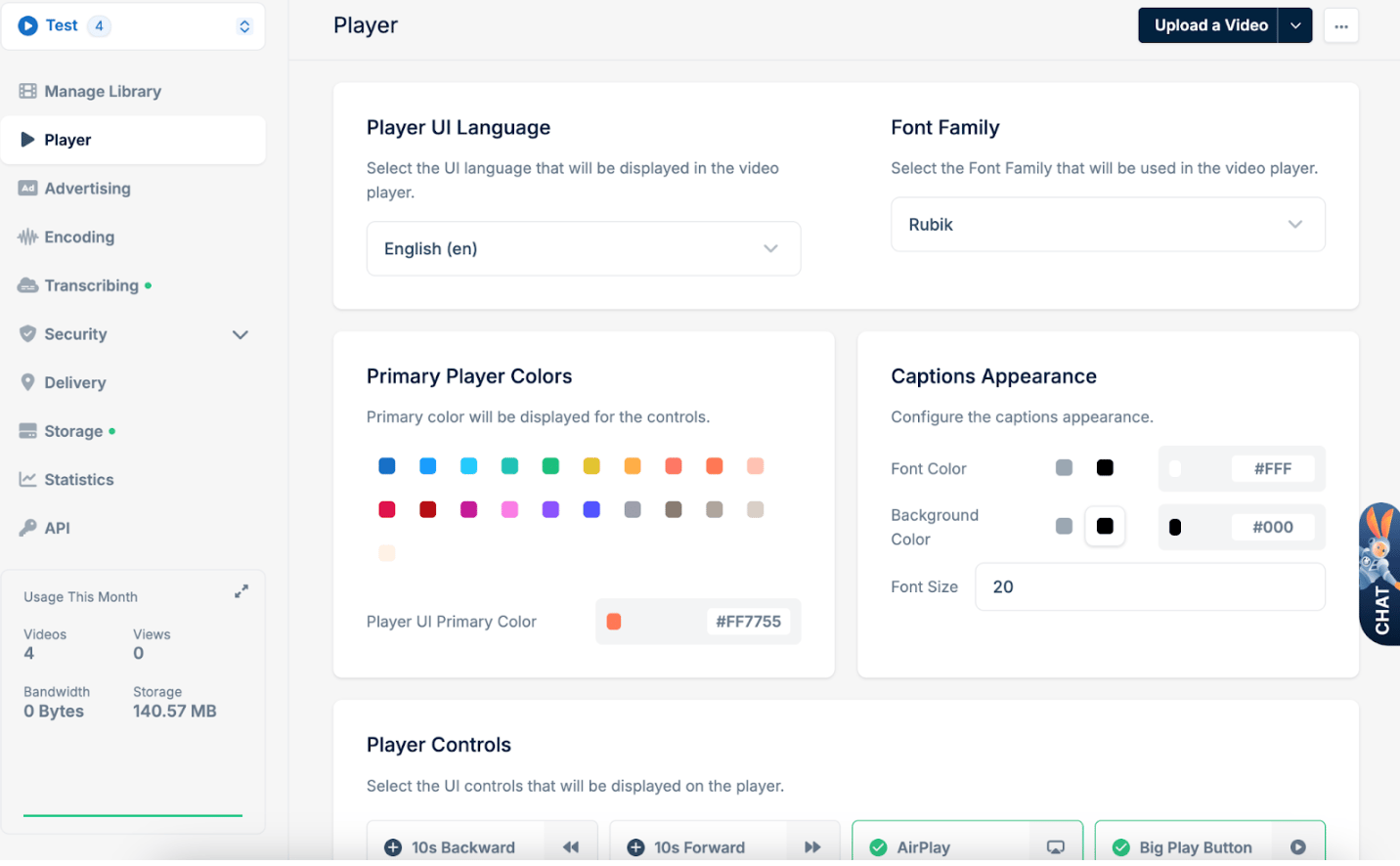
By default, many of the player’s controls and behaviors, such as captions, autoplay, and preload, can be configured on a global scale within the Player tab of your Bunny Stream library settings. Adjusting these default configurations ensures that any video embedded from that library inherits the same baseline behavior, providing a consistent user experience across all embedded instances.However, you can also fine-tune or override these defaults on a per-embed basis by adding query parameters directly to the embed or direct play URL. This flexibility allows you to tailor the playback experience for specific pages or use-cases without affecting the global settings of your library.
Boolean parameters accept true, false, 1 or 0. Where the default is a library setting, the parameter overrides that setting for the individual embed.
Parameter
Values
Description
Default Value
autoplay
true, false
Starts playback automatically. Browsers block unmuted autoplay unless the viewer has interacted with the page, so combine it with muted=true for reliable results.
true
muted
true, false
Starts the player muted. Takes precedence over a remembered mute preference.
false
loop
true, false
Replays the video automatically after it ends.
false
preload
true, false
Starts downloading the video before playback is requested so it starts faster.
true
t
30s, 1h20m45s, hh:mm:ss, numeric
Sets the start time. Accepts hours/minutes/seconds notation, hh:mm:ss, or a plain number of seconds.
0
captions
caption language code, for example en or en-auto
Turns on the captions track with this language code when playback starts, overriding the viewer’s remembered captions preference. Auto-generated (transcribed) captions use the language code with an -auto suffix, for example en-auto.
remembered preference, else off
lang
UI language code, for example de
Sets the language of the player interface.
library setting, else en
playsinline
true, false
Plays the video inline on iPhone. When false, iOS opens its native fullscreen player on play.
true
disableIosPlayer
true, false
Forces inline playback on iPhone even when playsinline=false, so the native iOS player is never used.
false
chromecast
true, false
Shows or hides the Chromecast button.
library player controls setting
disableAirPlay
true, false
Hides the AirPlay button when set to true. AirPlay is only offered when it is enabled in the library player controls.
false
showSpeed
true, false
Shows the playback speed control. Not available for live streams.
true
showHeatmap
true, false
Shows an engagement heatmap on the progress bar. Not shown together with compactControls.
library setting
compactControls
true, false
Enables the compact control bar, leaving more space for the video on desktop and mobile.
library setting
rememberPosition
true, false
Stores the last playback position in the viewer’s browser and resumes from it on the next visit. When false, the video always starts from the beginning.
library setting
rememberSettings
true, false
Stores viewer preferences (captions, volume, mute, speed, time display and playback position) in the browser. When false, nothing is saved or restored, including the position.
true
levelCap
true, false
Caps the selected video quality at the player’s rendered size so a small player does not download high resolutions.
false
nativeHls
off, auto, safari
Lets Safari play the HLS stream natively instead of through the player’s HLS engine, which enables the audio track menu in iOS native fullscreen. auto applies on iPhone and iOS WebViews only. safari applies to every Safari, at the cost of quality selection and levelCap. Ignored for DRM videos.
The page wraps the same embed player in a full-window layout and carries Open Graph metadata, so the link unfurls with the video title and thumbnail when shared on social platforms and in chat apps. It accepts the same query parameters as the embed URL:
If you prefer to use your own player or a fully custom video integration, you can directly access the raw video files from Bunny Stream’s infrastructure. Please refer to our Video Storage Structure documentation for details on how to retrieve and utilize video files directly.